
Getting Started

Market Sync connects your Shopify store to the marketplaces where you sell, so orders, products, and stock stay in sync automatically — no more juggling multiple back-office logins.
Supported marketplaces
- Adeo
- Airgoods
- Allegro
- Amazon
- bol.com
- Brico
- CDiscount
- Decathlon
- eBay
- Etsy
- Faire
- Kaufland
- Mediamarkt
- Otto
- PodFoods
- Praxis
- Walmart DSV
- XXXLutz
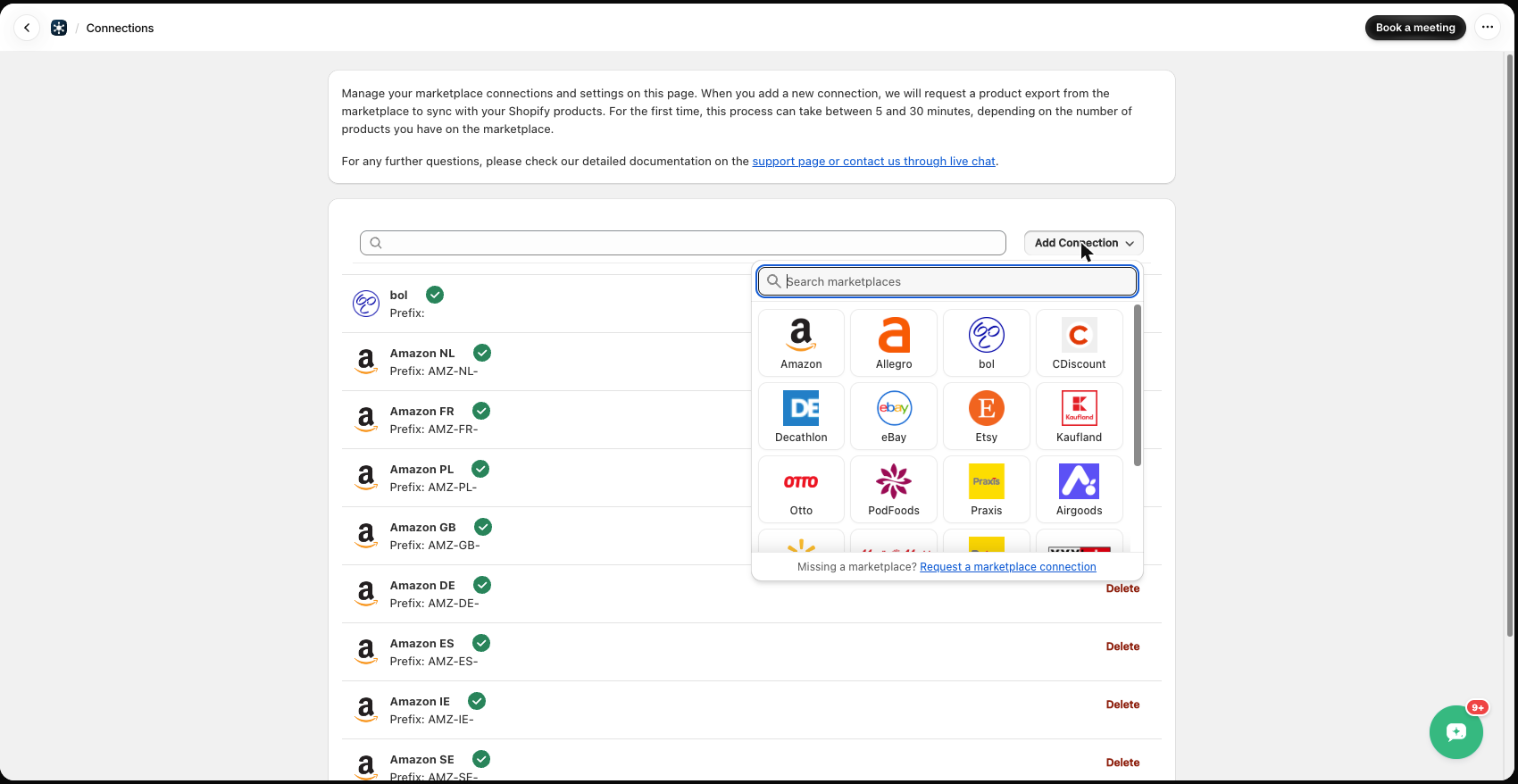
More marketplaces are being added regularly. Missing one? Use Request a marketplace connection in the Add Connection menu.
Key features
- Automatically import orders from every connected marketplace, or import them manually whenever you like.
- Fulfillments created in Shopify (with tracking) are sent back to the marketplace automatically.
- Stock and price updates in Shopify are pushed to your connected marketplaces, keeping inventory accurate everywhere you sell.
1. Open the app
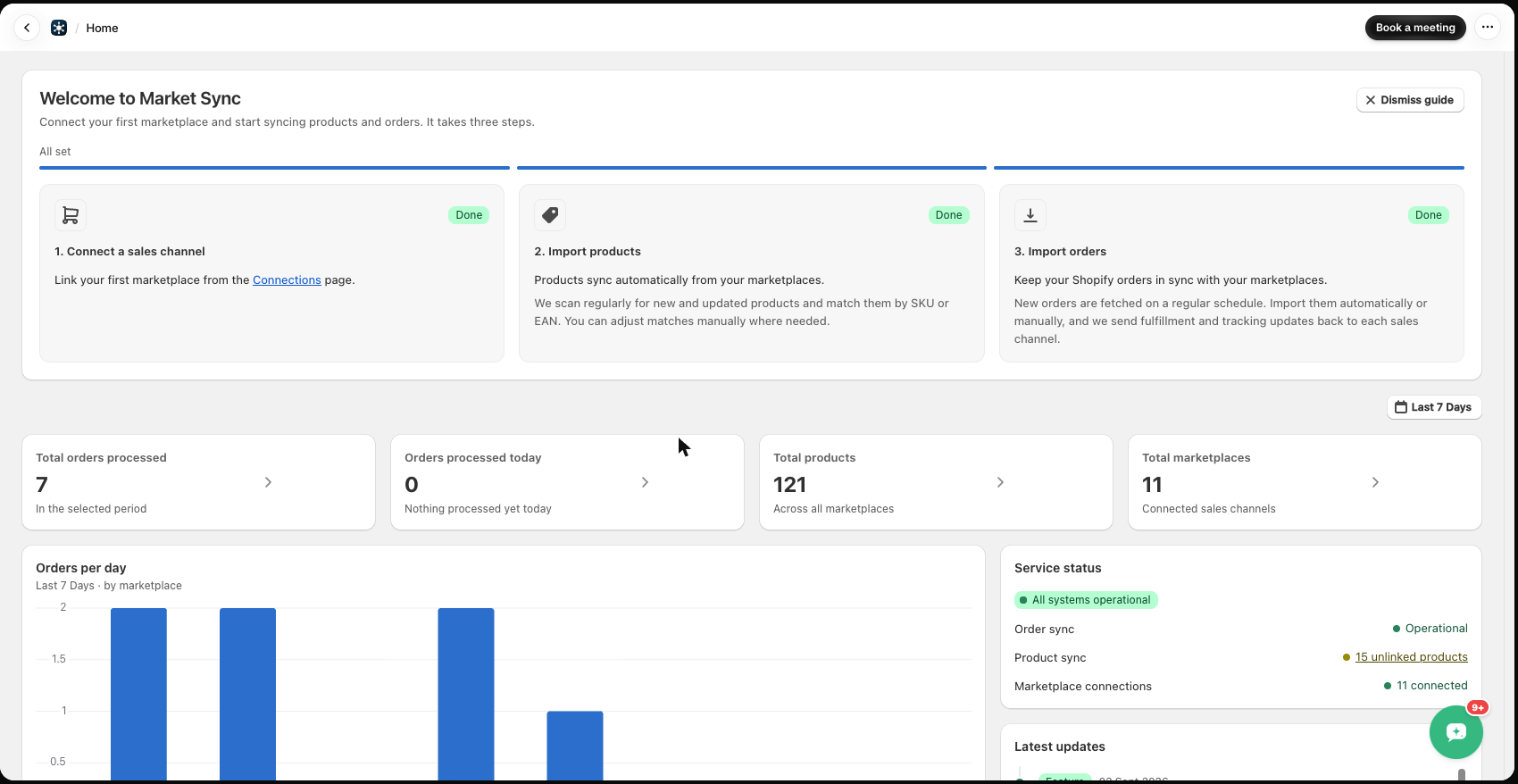
Once Market Sync is installed from the Shopify App Store, you’ll land on the Home dashboard. A short onboarding guide walks you through the three steps: connect a sales channel, import products, import orders. Each step is marked Done once completed; you can dismiss the guide at any time.
Below the guide, the dashboard shows your orders processed, orders processed today, total products and connected marketplaces. The Service status card tells you at a glance whether order sync and product sync are healthy and how many products are still unlinked. Charts show orders and revenue per day per marketplace; use the date picker (top right) to change the period.
2. Connect a marketplace
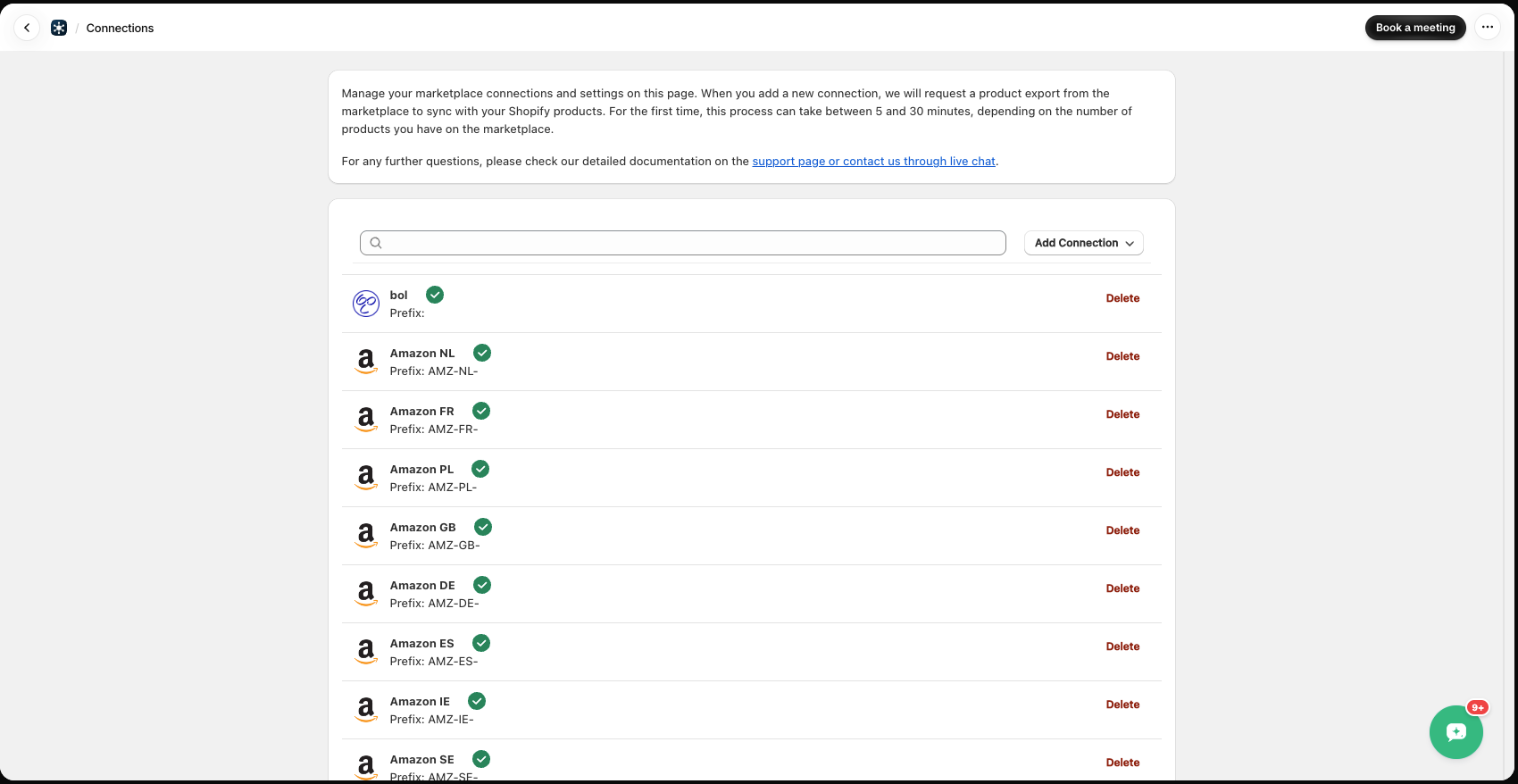
Go to Connections in the app menu, click Add Connection and pick the marketplace from the list. You’ll be asked for that marketplace’s credentials, such as an API key/client ID and secret, plus a short prefix and name so you can tell connections apart if you sell on more than one account for the same marketplace.
After connecting we request a product export from the marketplace. The first run can take 5–30 minutes depending on the number of products.
3. Configure your sync settings
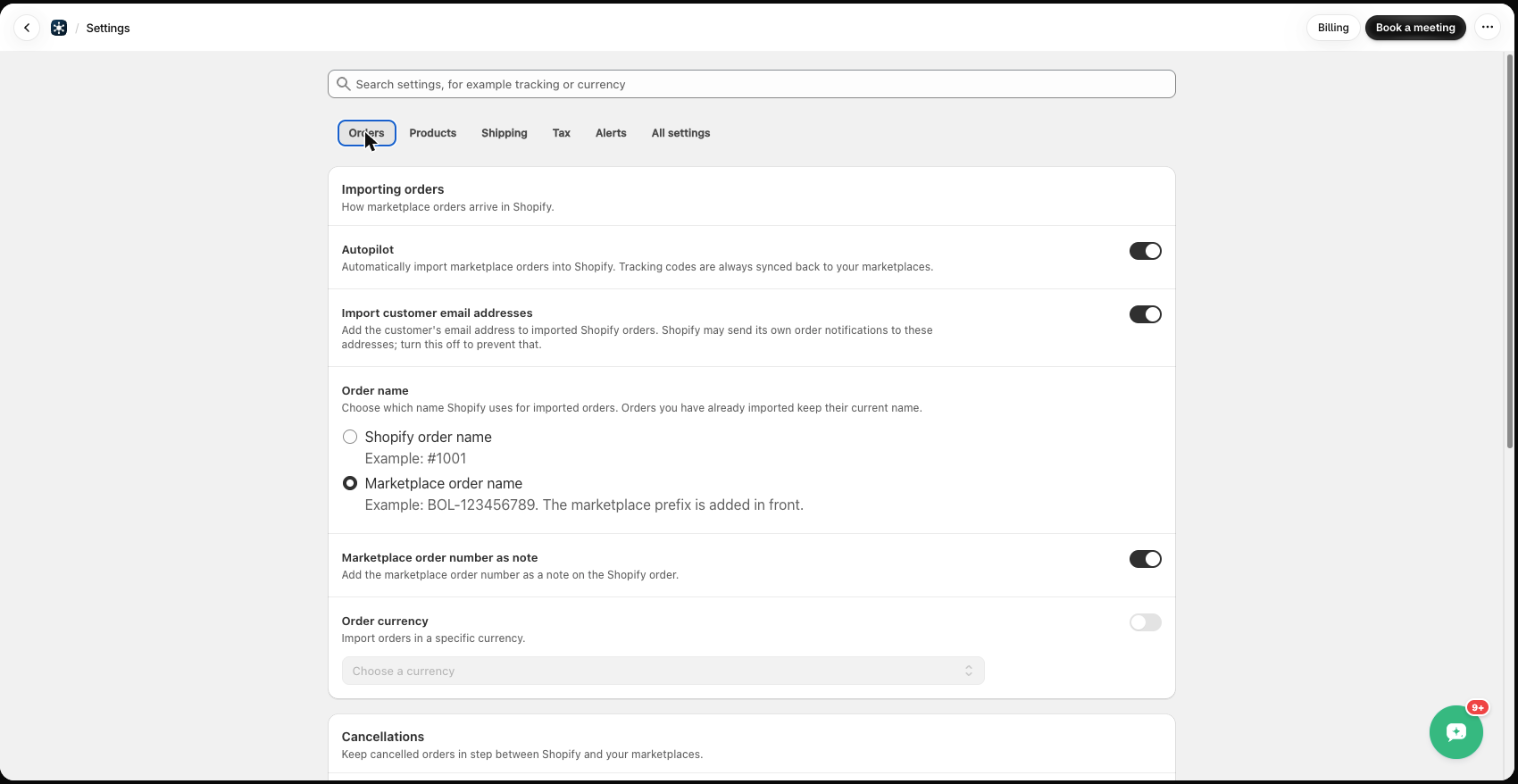
Head to Settings to fine-tune how orders, products, shipping, and tax are handled. Settings are grouped in tabs (Orders, Products, Shipping, Tax, Alerts); use the search bar to find a setting by name. Some of the most useful options:
- Autopilot – automatically imports marketplace orders into Shopify instead of importing manually.
- Order cancellation sync – keeps cancellations in sync between Shopify and your marketplaces (Shopify → marketplace for Amazon and bol.com; marketplace → Shopify for Amazon, bol.com and Allegro).
- Product inventory sync – pushes stock updates from Shopify to your marketplaces whenever they change. Price sync is enabled per connection.
- Default shipping method – ensures orders always include a shipping method, for example when MyParcel needs one to print labels.
- Fulfill orders when shipped from the marketplace – automatically marks the Shopify order as fulfilled when you create a shipping label on the marketplace side.
4. Check your orders and products
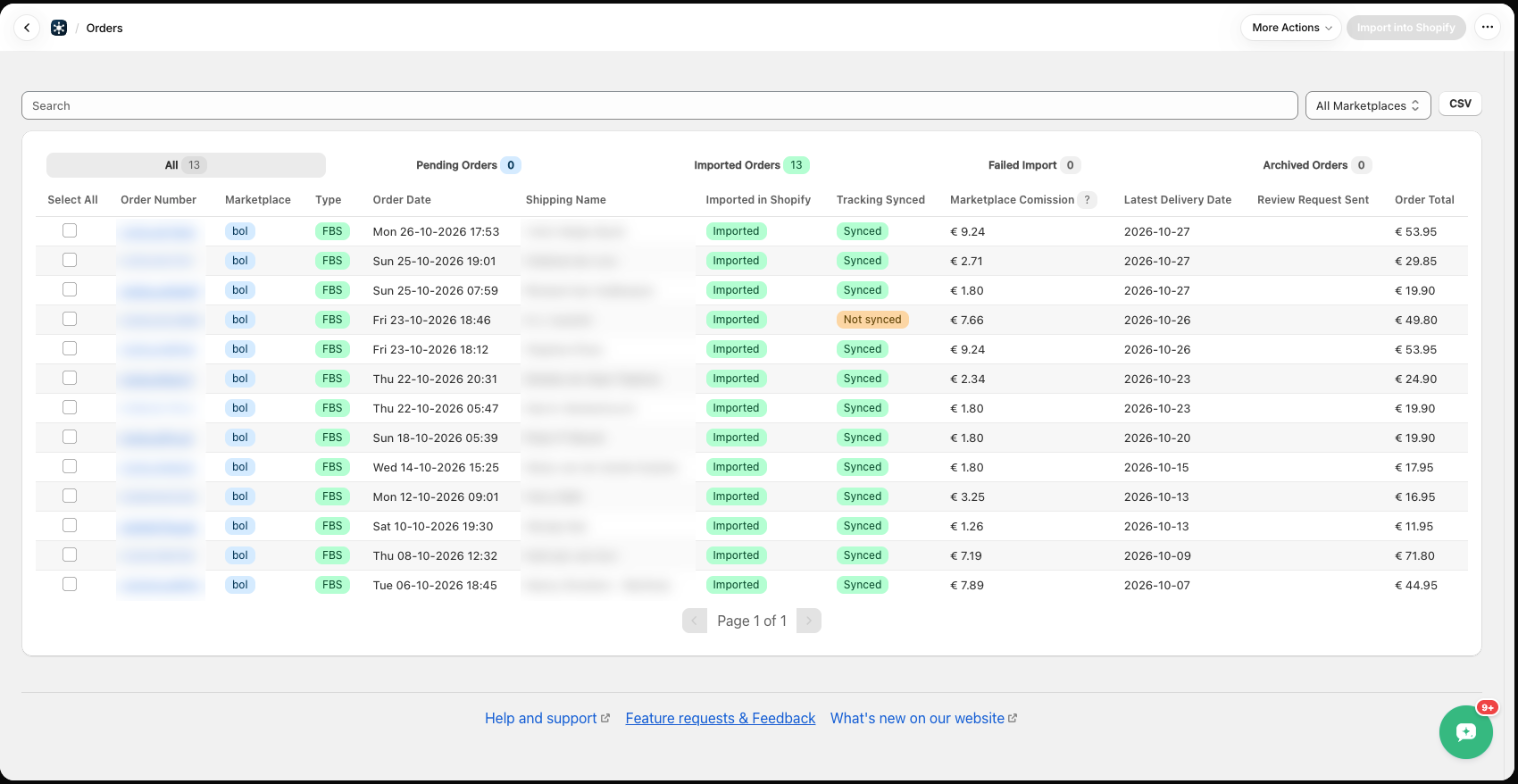
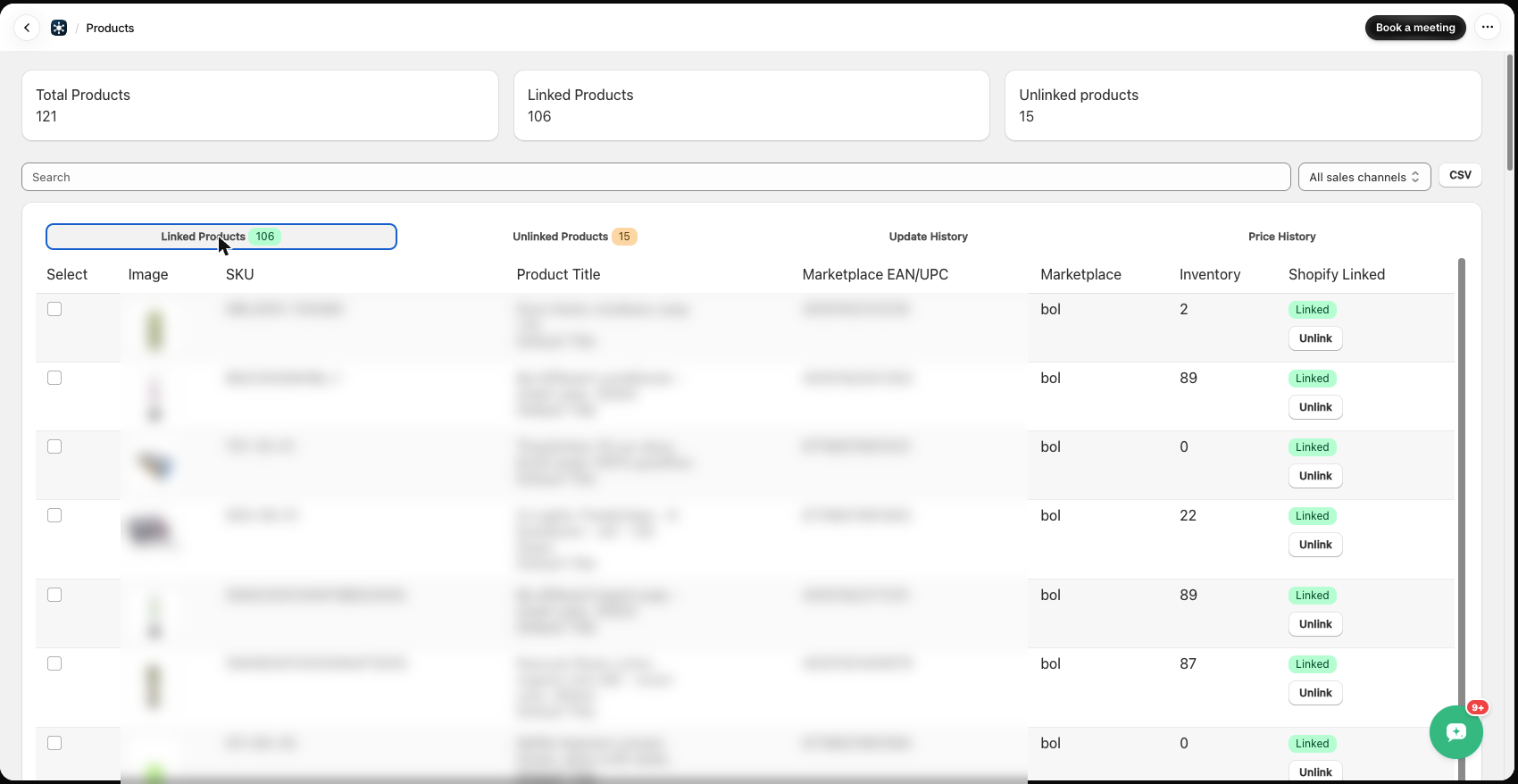
Use the Orders tab to review imported orders, see which ones are still pending or failed, and check tracking sync status. Use the Products tab to see which of your Shopify products are linked to marketplace listings and which still need linking, plus the history of stock and price updates we sent.
That’s it — once your marketplaces are connected and your sync settings are configured, Market Sync keeps orders, stock, and fulfillments flowing automatically between Shopify and every marketplace you sell on.
Was this article helpful?
Thanks for your feedback!