
Using The App

Market Sync imports orders from your marketplaces into Shopify, sends fulfillments and tracking back, and keeps stock and prices in sync. This article walks through each page of the app.
Home
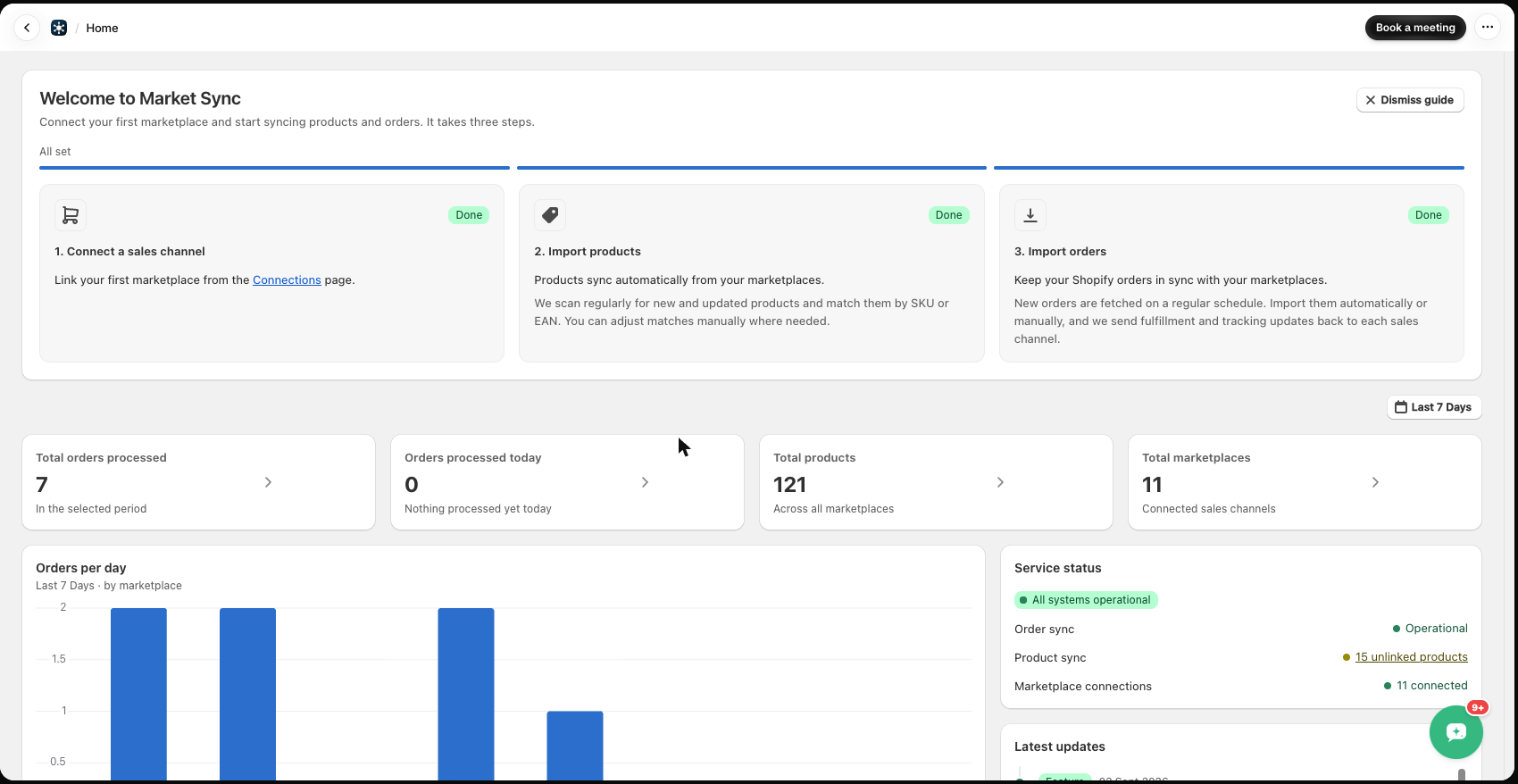
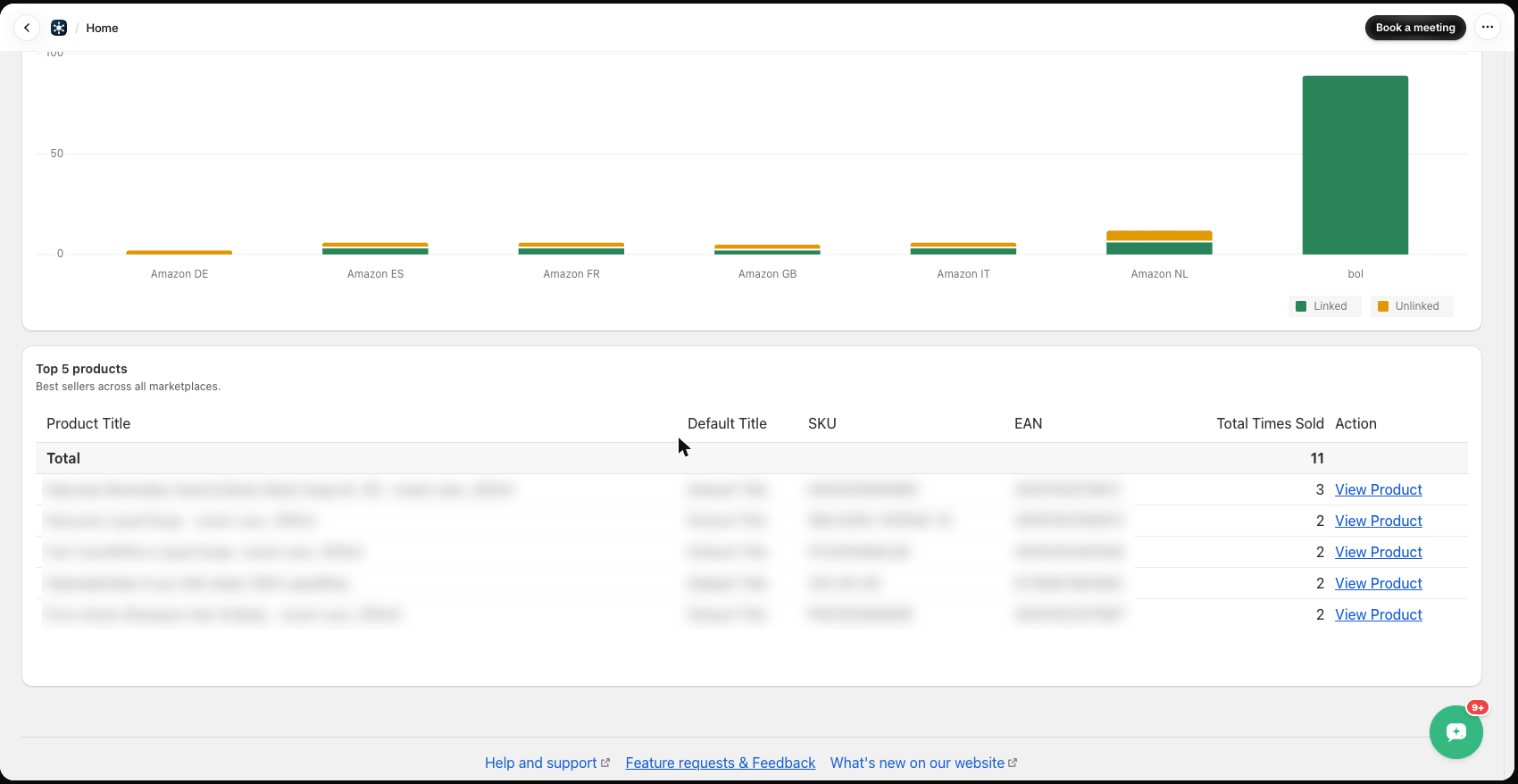
After installing the app you land on the Home page. It shows four key figures (orders processed in the selected period, orders processed today, total products, connected marketplaces), a Service status card (order sync, product sync with the number of unlinked products, marketplace connections), the latest product updates, and charts for orders and revenue per day per marketplace. Further down you find product linkage per sales channel and your top 5 products. Use the date picker top right to change the period.
Orders
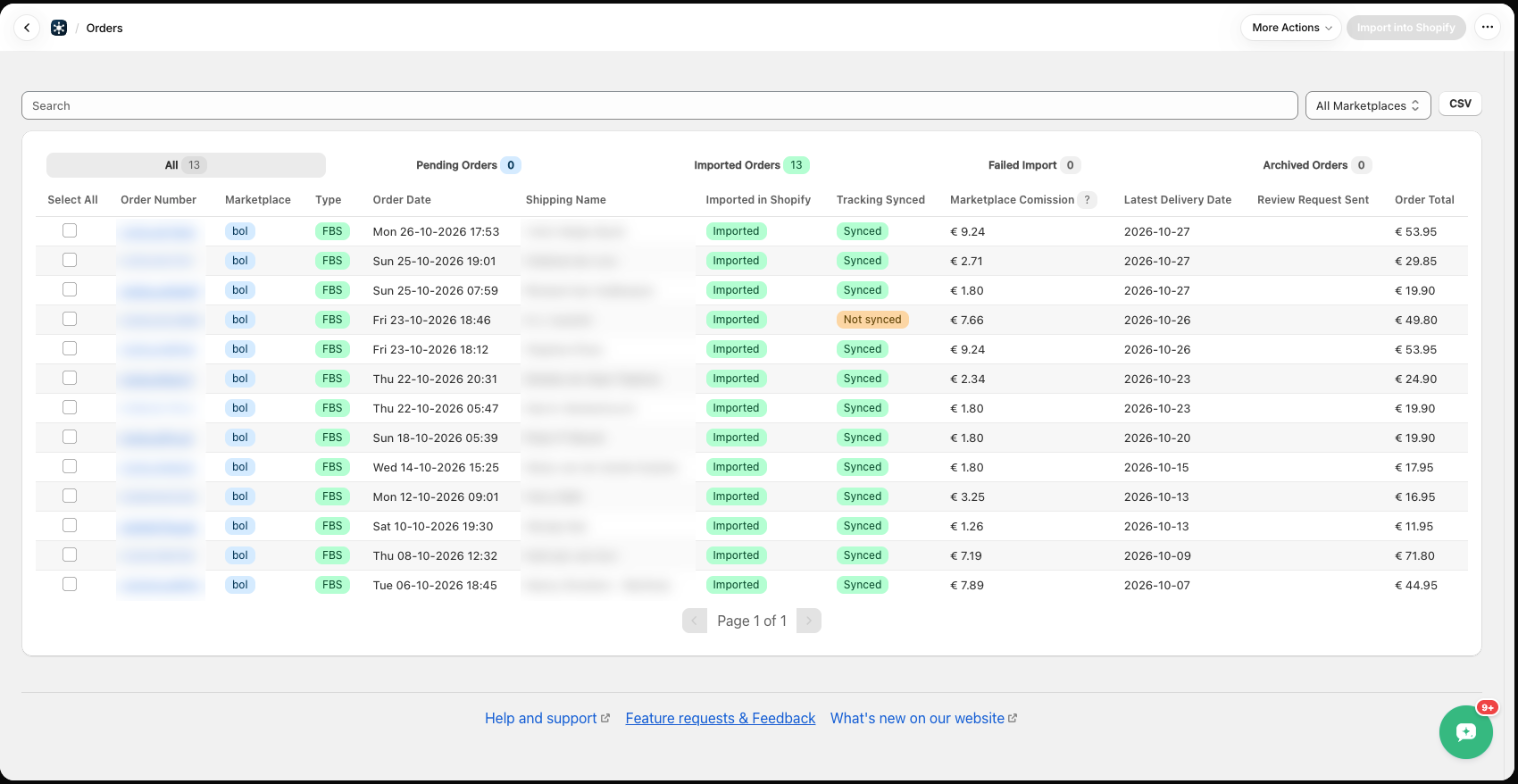
The Orders page lists every order we fetched from your marketplaces, split into All, Pending Orders, Imported Orders, Failed Import and Archived Orders. Each row shows the marketplace, order type (FBS = fulfilled by seller, FBA/FBB = fulfilled by the marketplace), whether it was imported in Shopify, whether tracking was synced, marketplace commission, latest delivery date and order total. Use the search bar, the marketplace filter or the CSV export to narrow things down.
There are two ways to get orders into Shopify:
- Automatic – enable Autopilot in Settings › Orders.
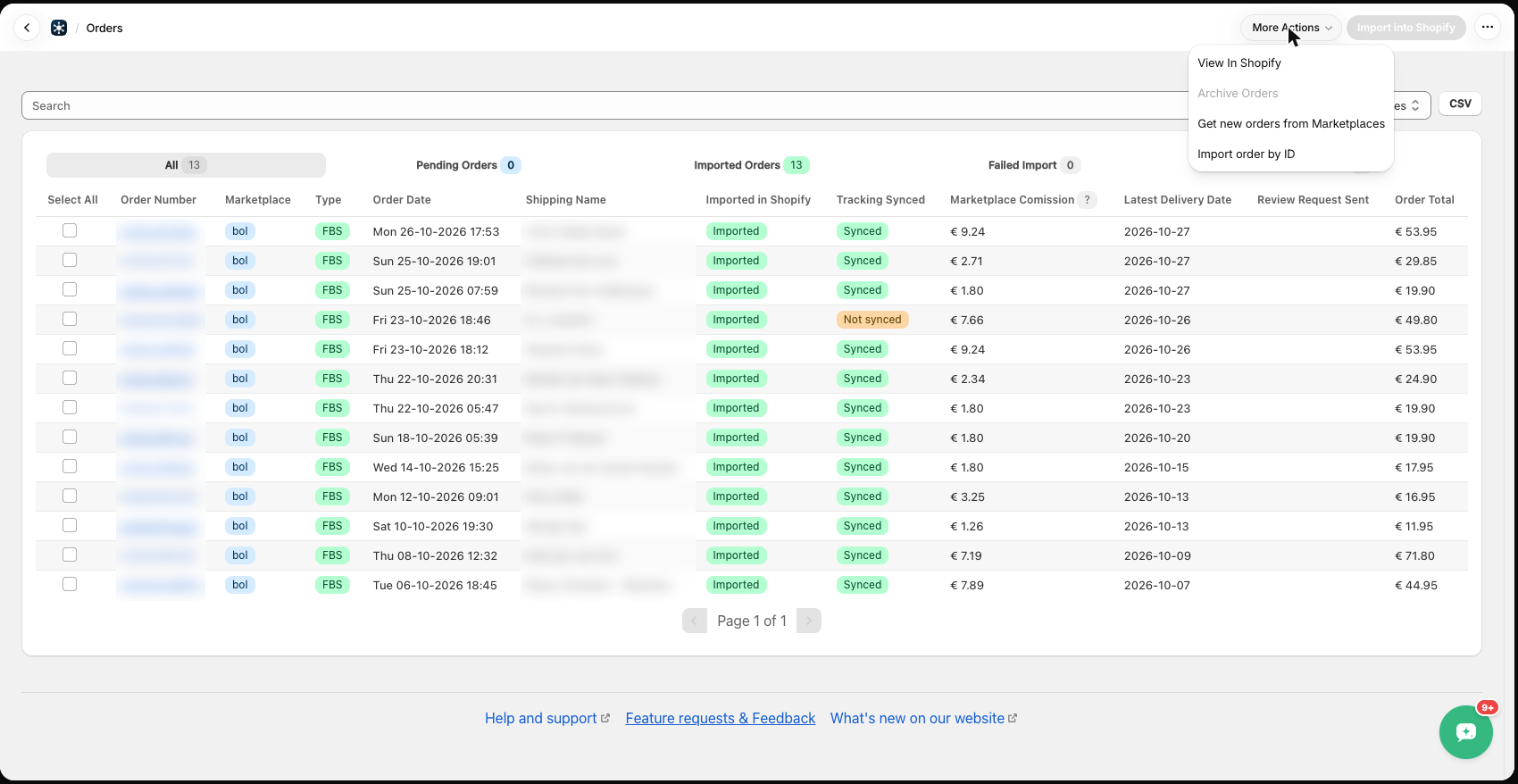
- Manual – open More Actions (top right) and choose Get new orders from Marketplaces, or Import order by ID for a single order. Select orders and click Import into Shopify to import them.
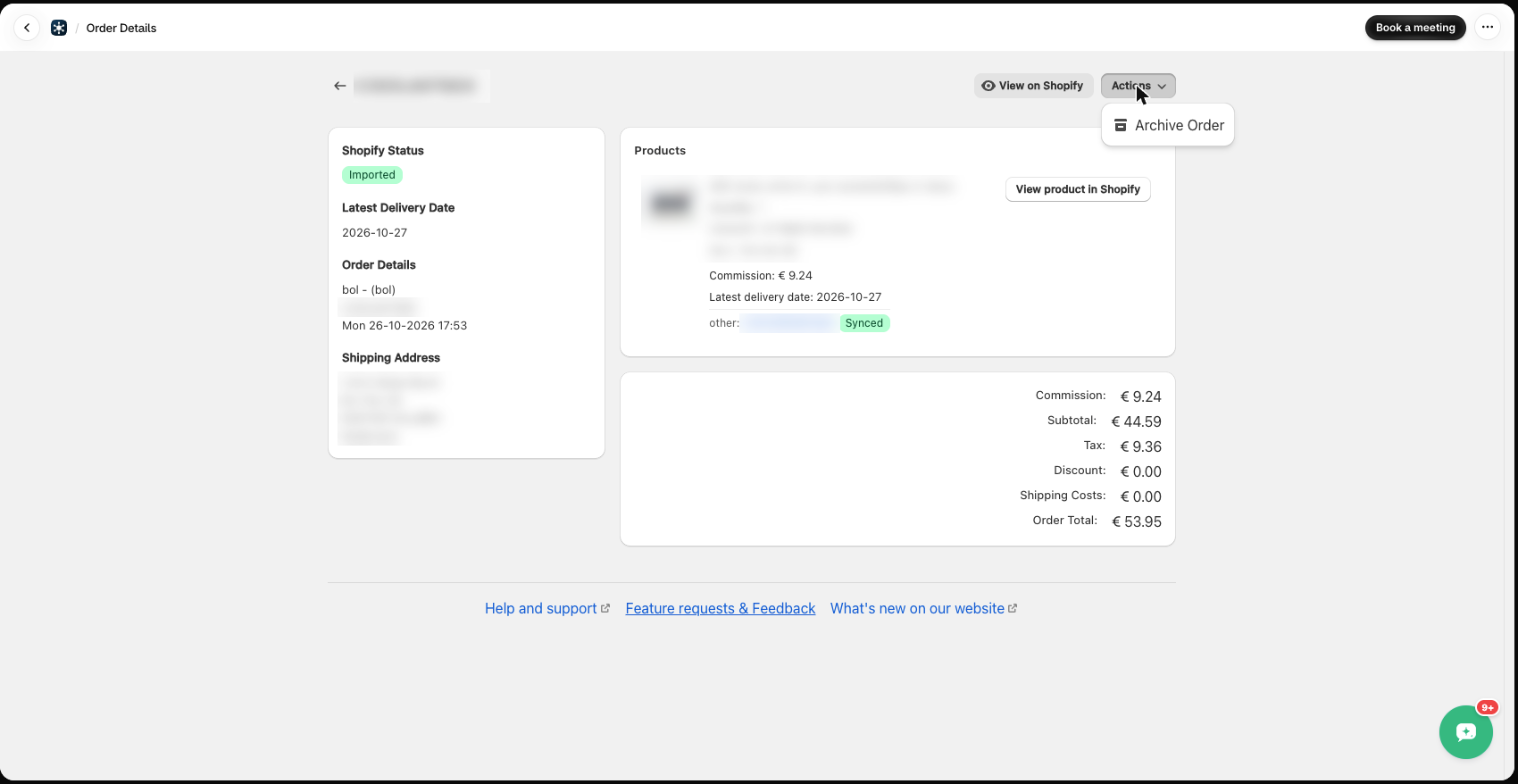
Click an order number to open the order detail: Shopify status, delivery date, shipping address, the products with their EAN/SKU and tracking status, and the totals. From here you can view the order in Shopify, link an unlinked product, retry the import or archive the order.
Products
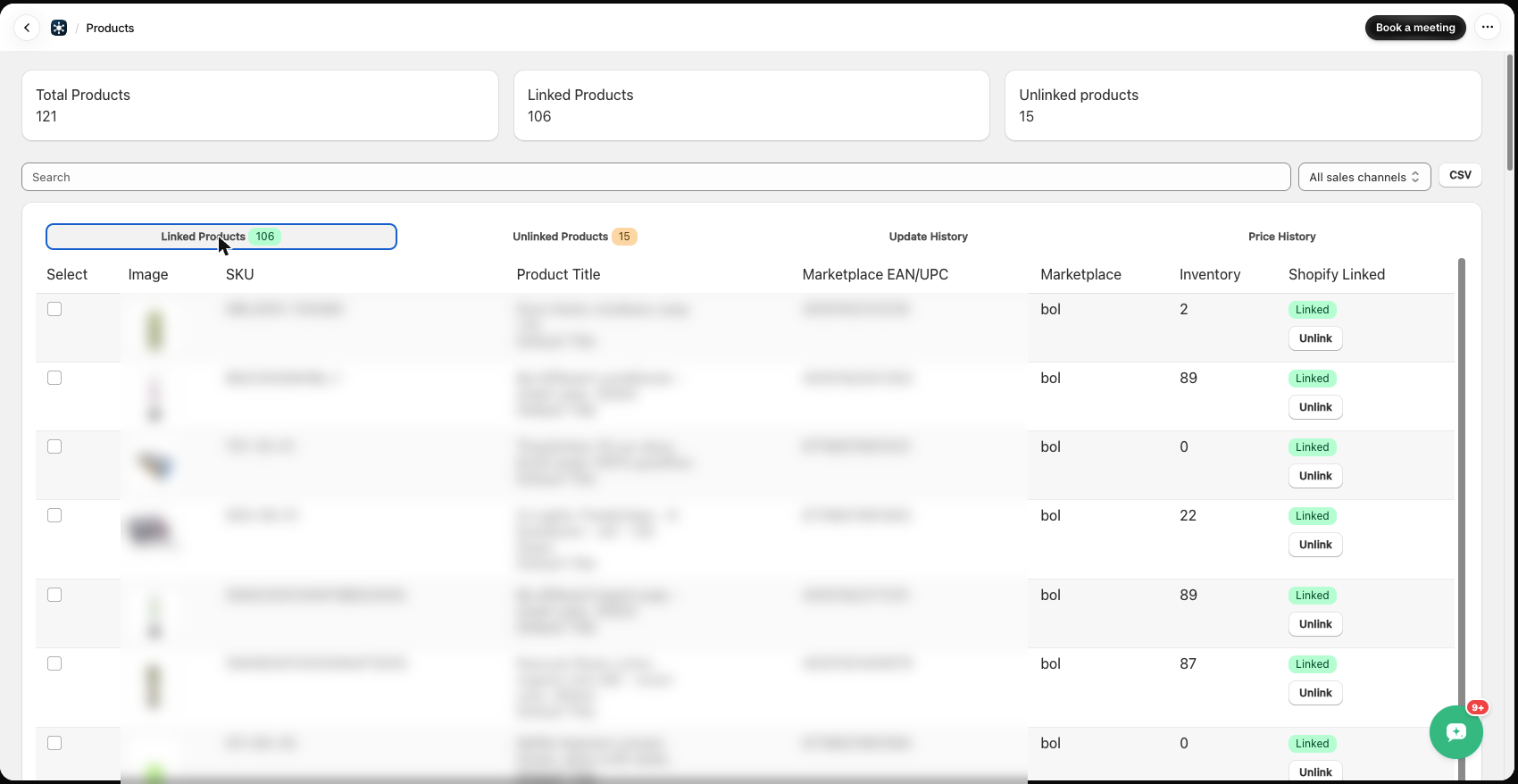
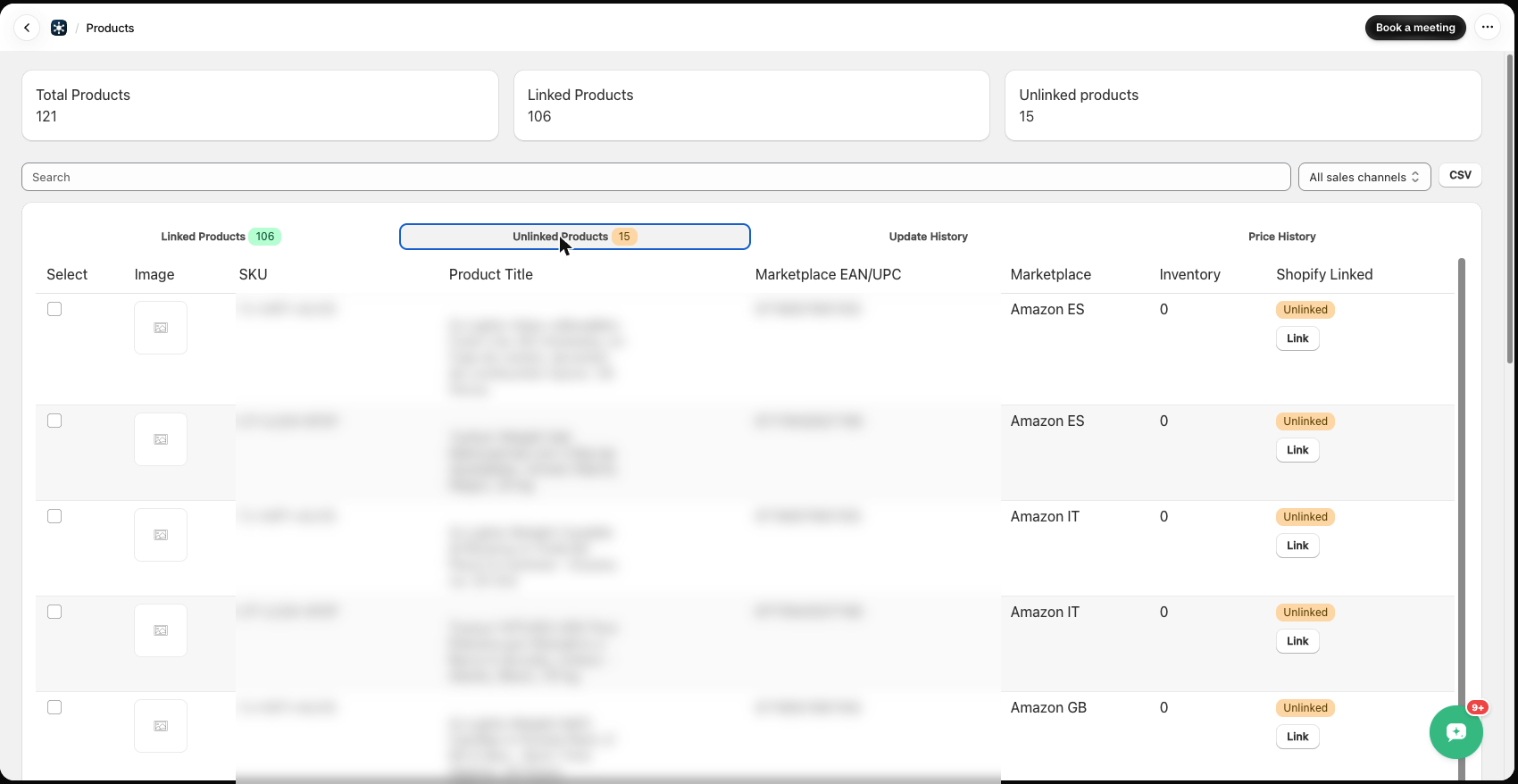
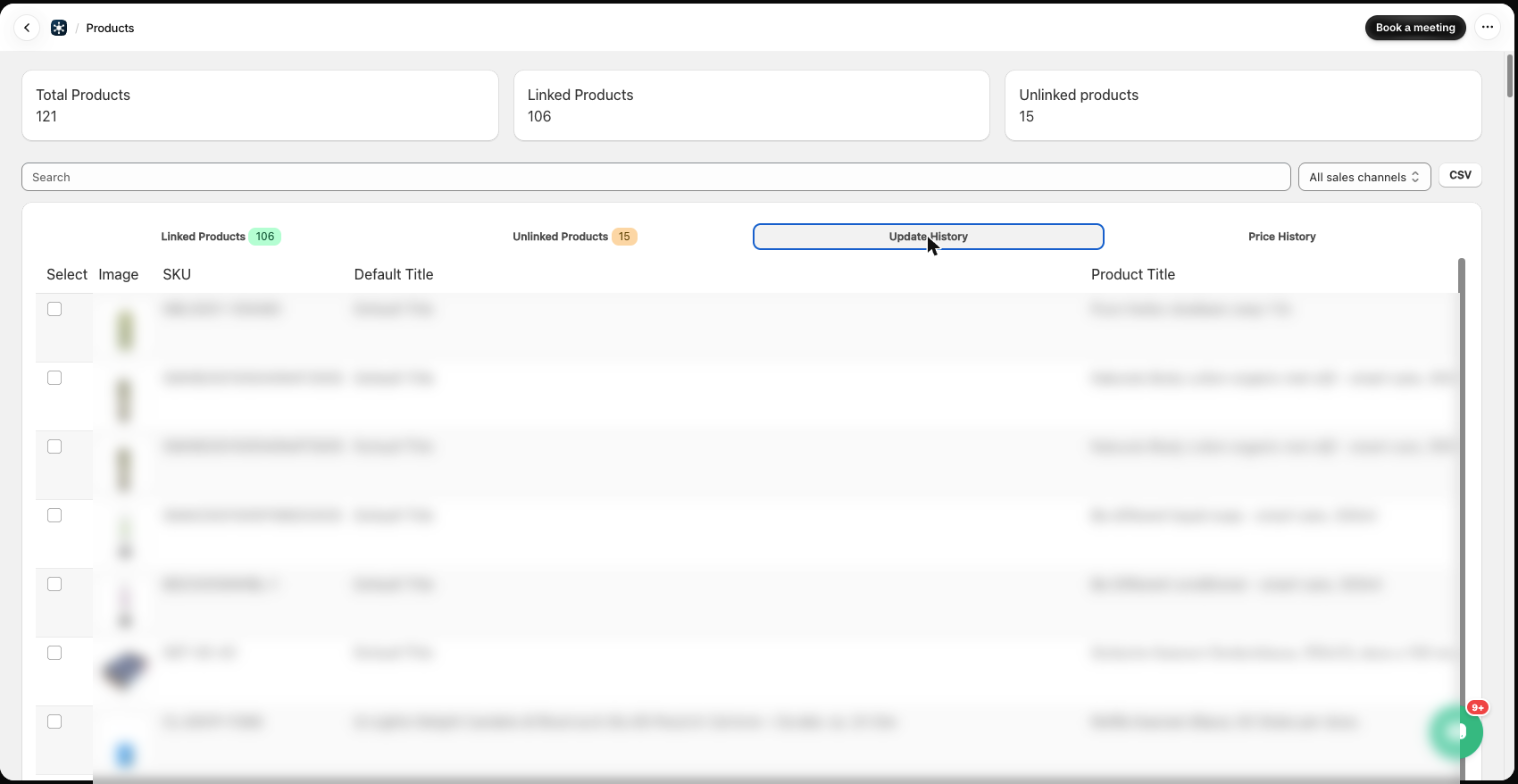
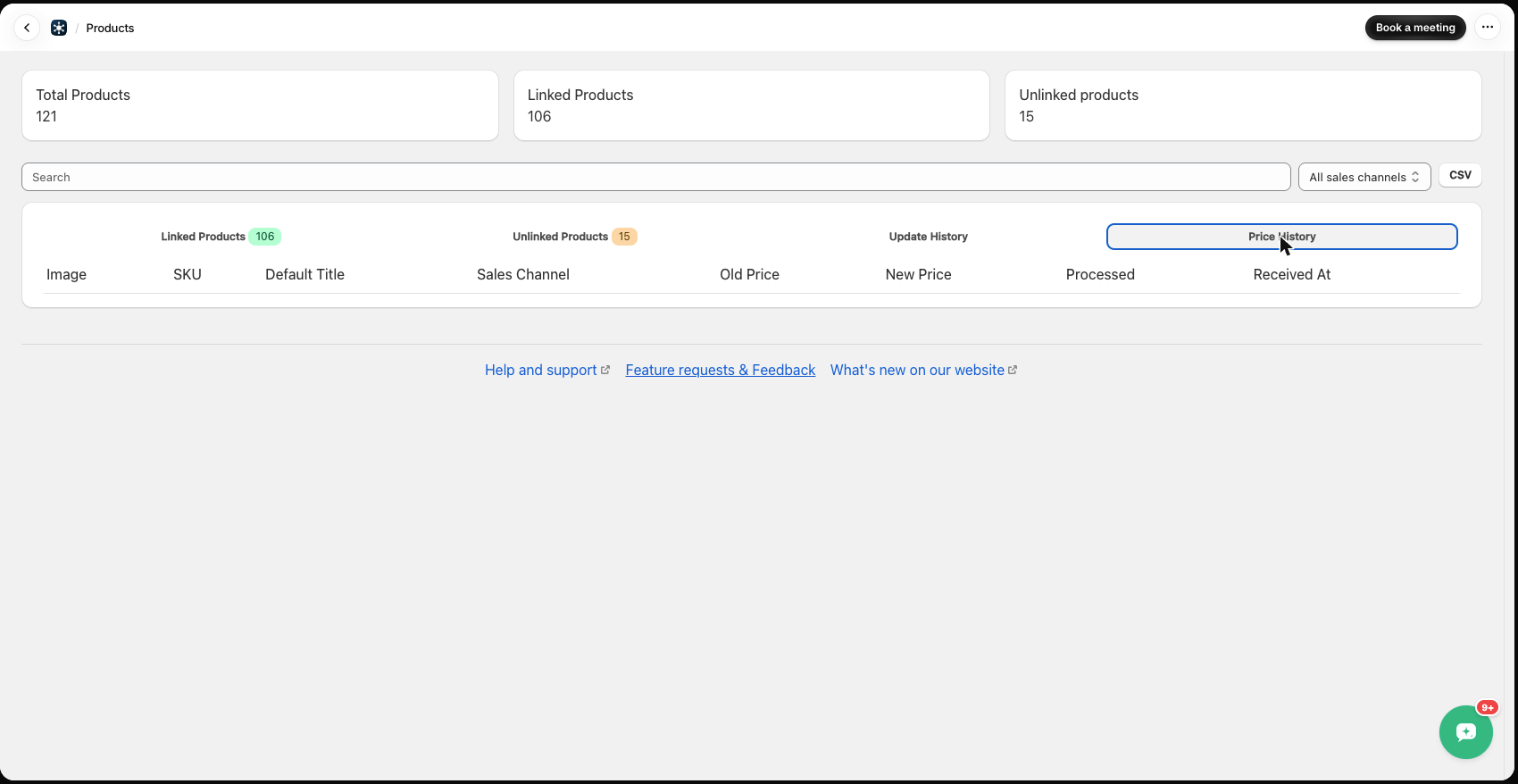
The Products page has four tabs:
- Linked Products – products matched between Shopify and a marketplace. Stock (and optionally price) is synced for these. Click Unlink to break a match.
- Unlinked Products – marketplace offers we could not match to a Shopify product. Click Link to pick the right Shopify product manually.
- Update History – every stock update we sent to a marketplace.
- Price History – every price update we sent (old price, new price, processed, received at).
Filter by sales channel or export the list as CSV.
Settings
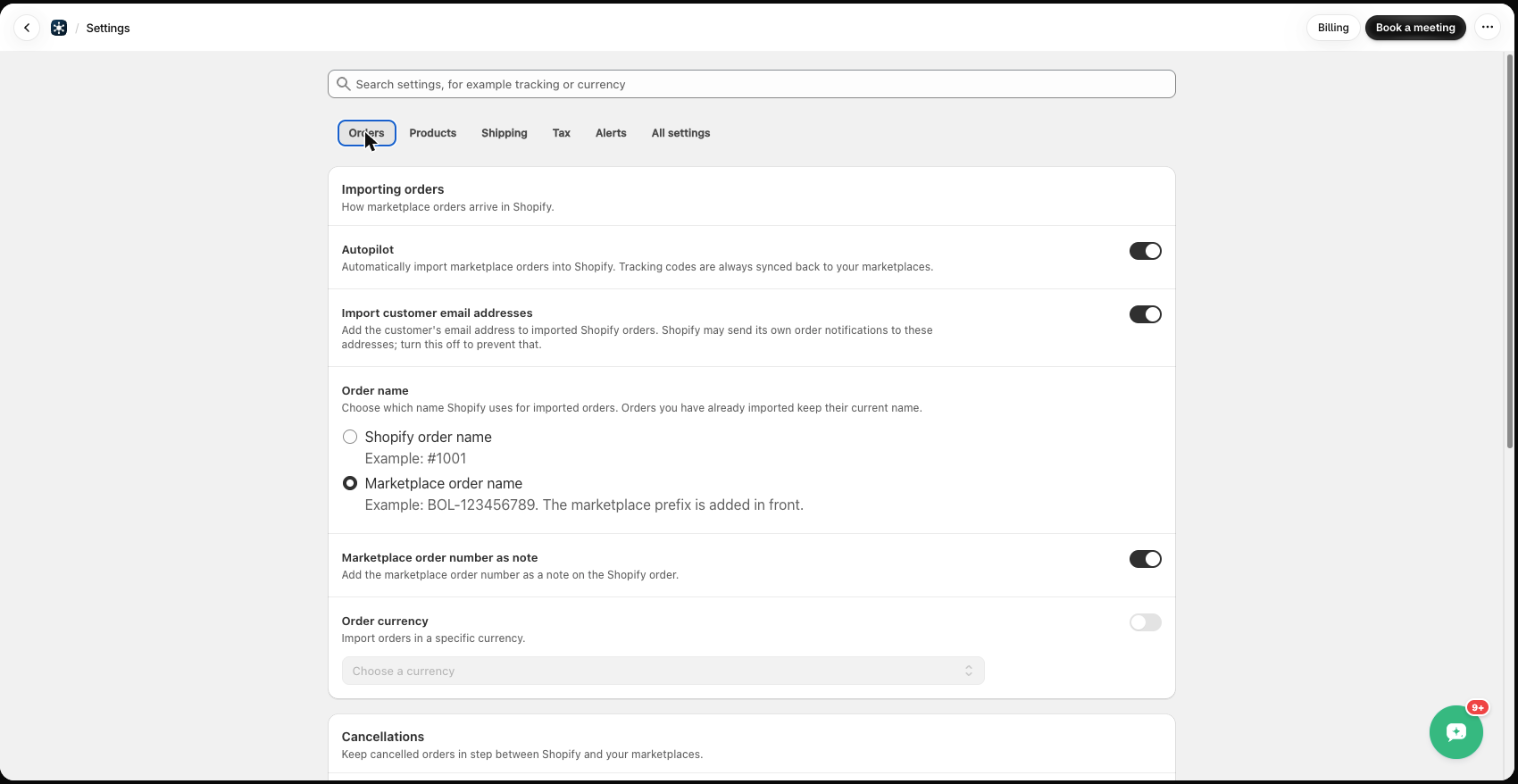
Settings are grouped in tabs: Orders, Products, Shipping, Tax, Alerts and All settings. Use the search bar to find a setting by name. Every setting is explained in the Settings article. The Billing button (top right) shows your plan, the current cycle and how charges are calculated.
Connections
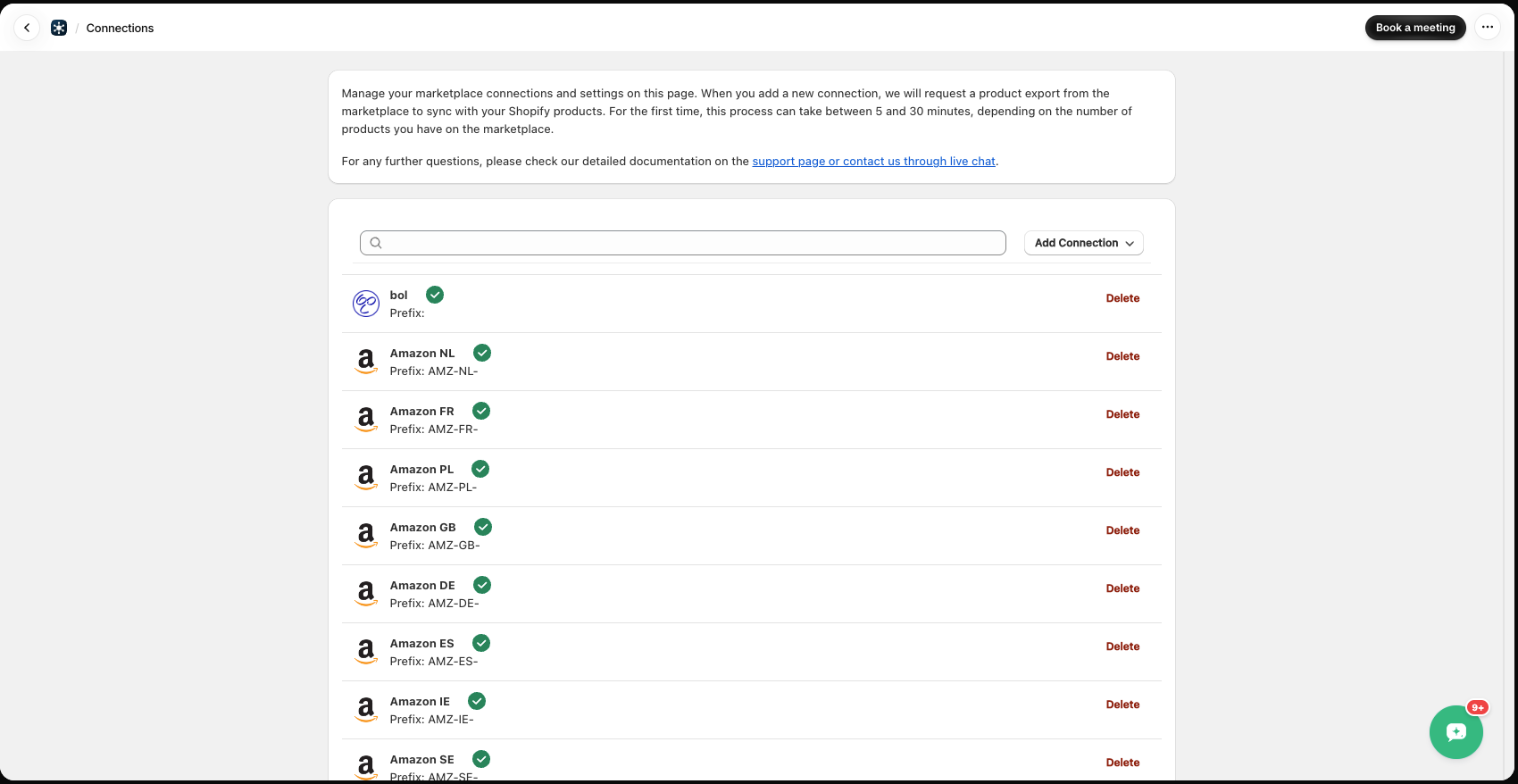
Click Add Connection, pick the marketplace and enter your credentials. Click an existing connection to edit its name, prefix and credentials, or to change settings that apply to that connection only (see Connection settings). Delete removes the connection.
Help
Every page has links to Help and support, Feature requests & Feedback and What’s new at the bottom. The chat bubble bottom right opens live chat with our support team.
Was this article helpful?
Thanks for your feedback!