
Connecting to Mirakl with Api Key
How to Generate a Mirakl API Key (Seller API) Step-by-step guide to generating a personal API key in the Mirakl seller portal (e.g. Decathlon Partner) and using it to authenticate Seller API calls.
Generating a Mirakl API key
Mirakl-based marketplaces (e.g. Decathlon Partner) expose a Seller API that lets external systems read and manage orders, offers, messages and more. To use the API you need two things:
The marketplace URL (e.g. https://marketplace-decathlon-eu.mirakl.net) An API key, generated from your personal account on that marketplace
This page explains how to generate the API key.
Before you start
You need a login for the marketplace seller portal (the Mirakl back office).
API keys are personal: the key belongs to the user who generates it and inherits that user’s permissions. Generate the key with an account that has access to the data you need (orders, offers, messages) and that won’t be deactivated later.
Steps
Open your account menu
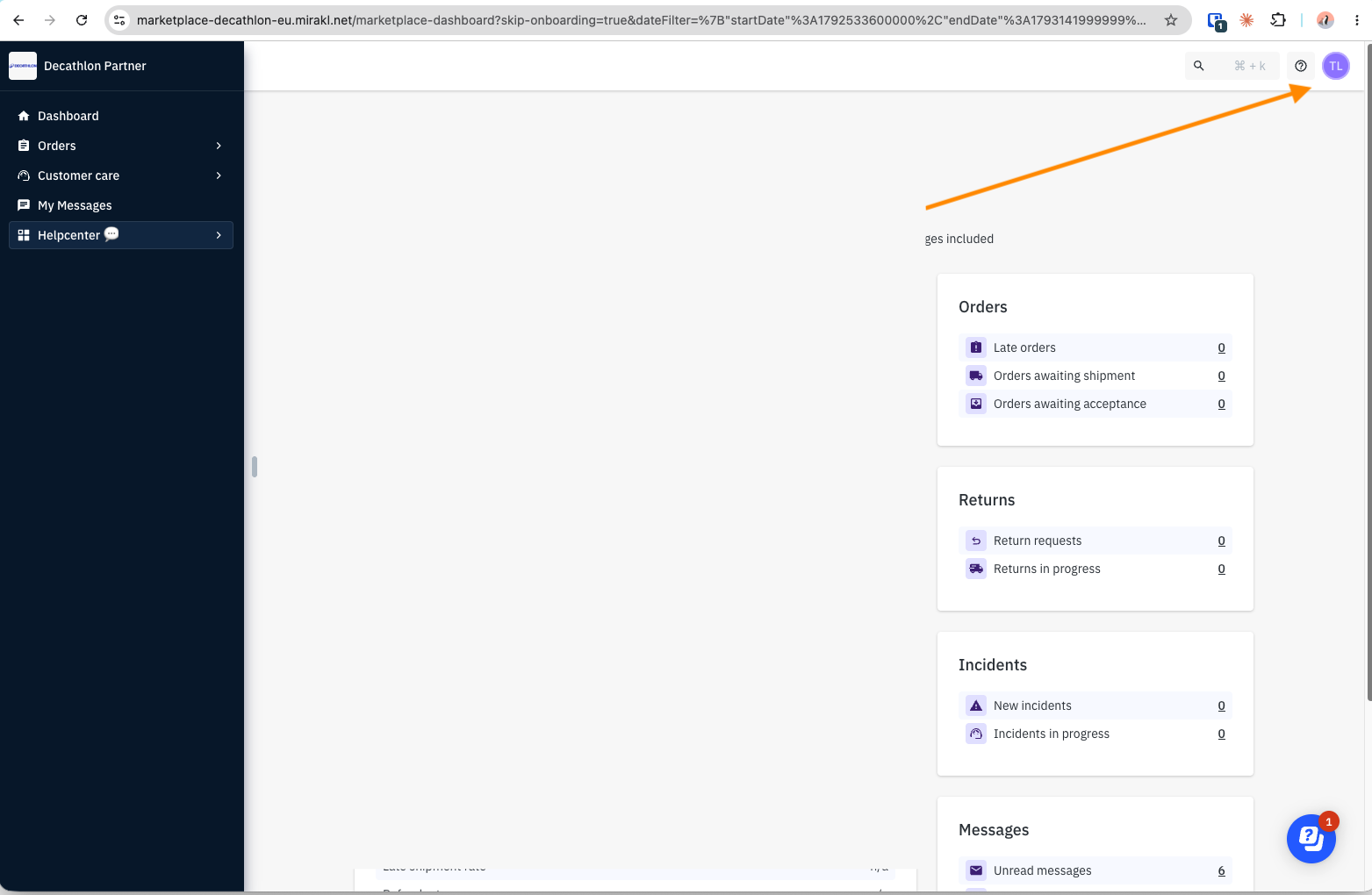
Log in to the seller portal and click your initials/avatar in the top-right corner.
Mirakl dashboard with the account avatar in the top-right corner
Go to Personal settings
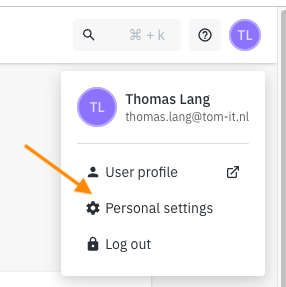
In the menu that opens, choose Personal settings.
Account menu with the Personal settings option
Generate a new key
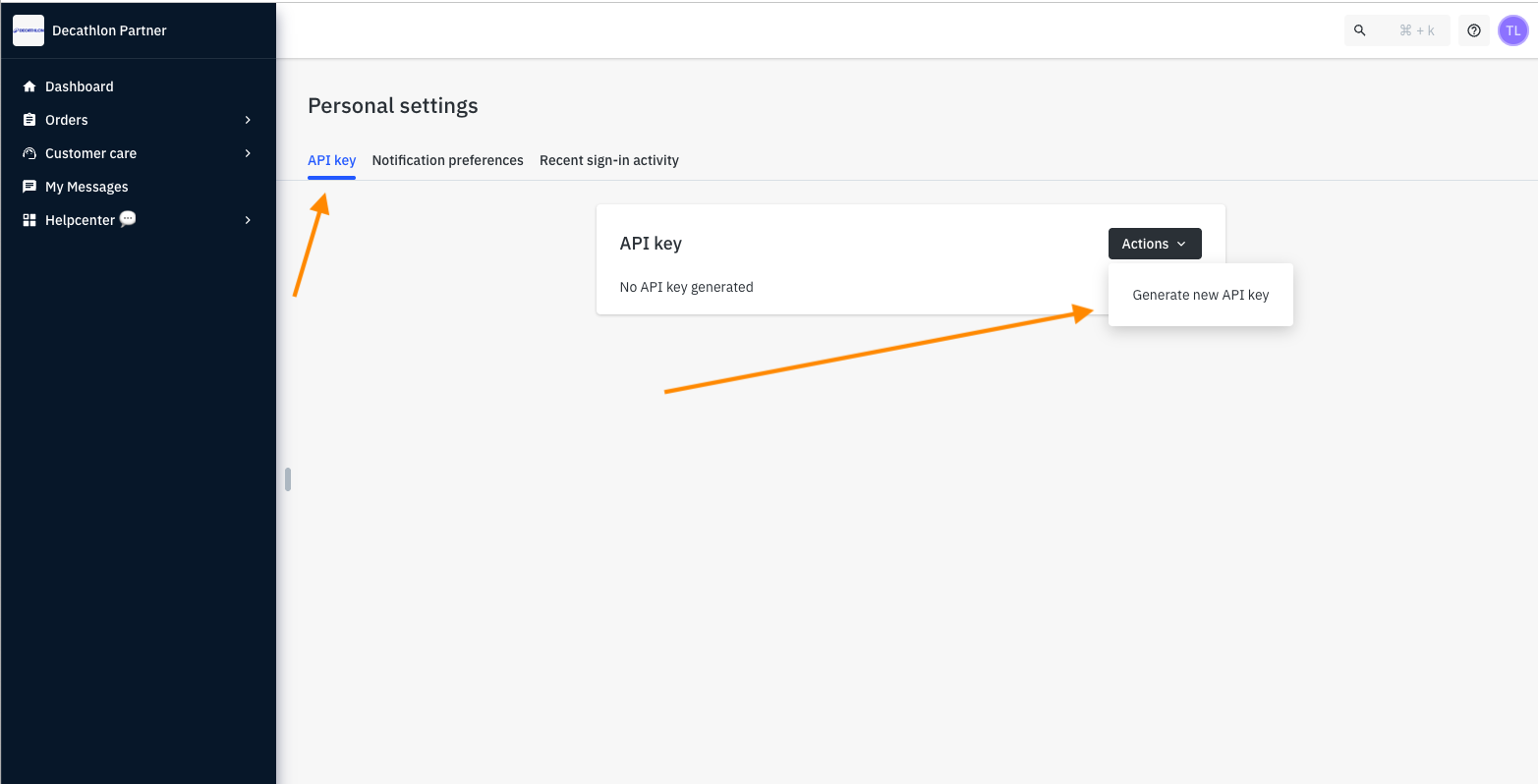
On the Personal settings page, make sure the API key tab is selected. Click Actions → Generate new API key.
Personal settings page, API key tab, Actions → Generate new API key
Copy the key
The key is shown after generation. Copy it right away and store it somewhere safe (a password manager). Treat it like a password: anyone with the key can act on your marketplace account.
Using the key
Mirakl API calls go to /api/... and are authenticated with the key in the Authorization header:
GET https://marketplace-decathlon-eu.mirakl.net/api/orders Authorization:
The marketplace URL is the base URL of the seller portal, without a path.
Rotating or revoking a key
Generating a new key from the same Actions menu replaces the old one — the old key stops working immediately. Update any system using the key straight away.
Troubleshooting Problem Likely cause 401 Unauthorized Key is wrong, incomplete, or has been regenerated 403 Forbidden The user who created the key lacks permissions for that resource Calls work, then stop The user account was deactivated, or someone generated a new key
Was this article helpful?
Thanks for your feedback!