
 Marketplace Configurations
Connecting to Airgoods
Connect your Airgoods account to Market Sync by adding the connection and entering your Airgoods account details.

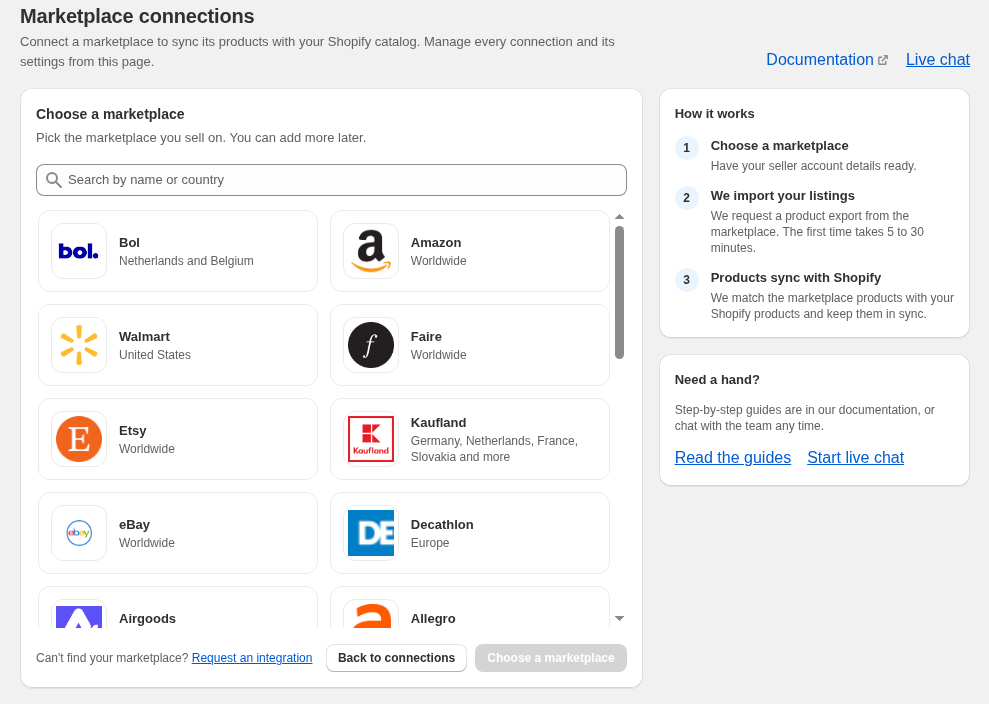
To add an Airgoods connection to Market Sync, go to Connections in the app menu, click Add marketplace and choose Airgoods.
An Airgoods API key is required to connect.
Step 1 - Add the connection
Open Connections, click Add marketplace, pick Airgoods from the list and click Connect Airgoods.
Step 2 - Enter your API key and save
The Add Airgoods Connection window opens on the Connection tab.
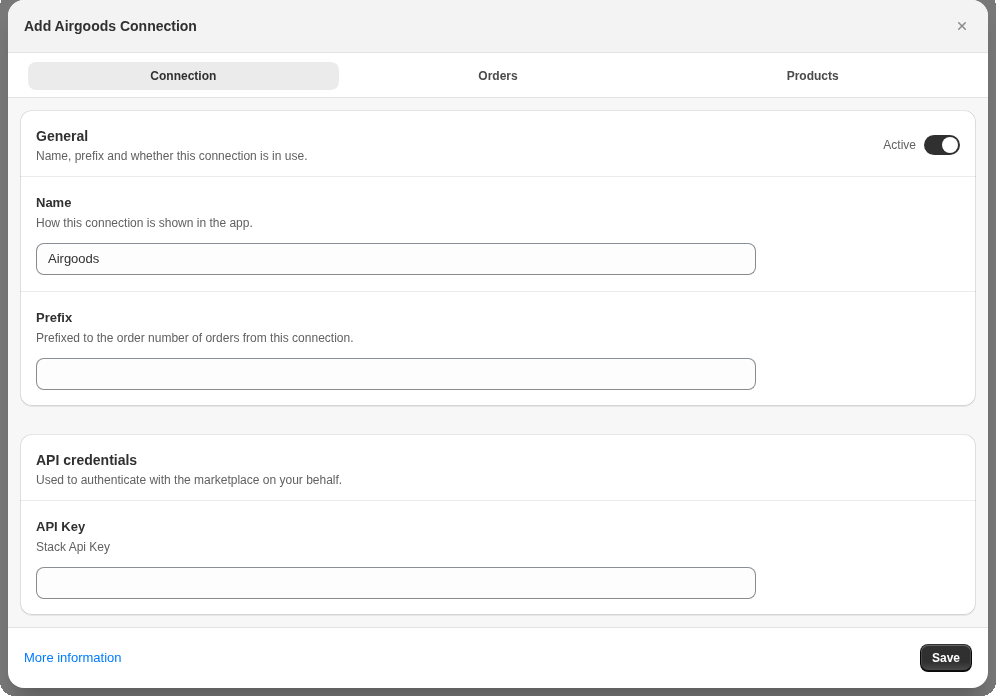
On the Connection tab you can set:
- Active — whether this connection is in use
- Name — How this connection is shown in the app. The field is prefilled with Airgoods.
- Prefix (optional) — Prefixed to the order number of orders from this connection.
- API Key — the Airgoods API key (the field helper is “Stack Api Key”). This is in the API credentials section.
For where to get the key and how the integration works, see the Airgoods × Shopify Integration Guide. The setup window also has a More information link to this guide.
Click Save when you are done. You can close the window without saving by using the close control.
Order tags for this connection are set on the Orders tab, not on the Connection tab. Orders and Products settings can be changed later.
The app will now establish the connection with your Airgoods account.
Was this article helpful?
Thanks for your feedback!