
 Marketplace Configurations
Connecting to Amazon
Connect your Amazon seller account to Market Sync by authorizing access for one marketplace, or all marketplaces you sell on in the same region.

To add an Amazon connection to Market Sync, go to Connections in the app menu, click Add marketplace and choose Amazon.
Step 1 - Add the connection
Open Connections, click Add marketplace, pick Amazon from the list and click Connect Amazon.
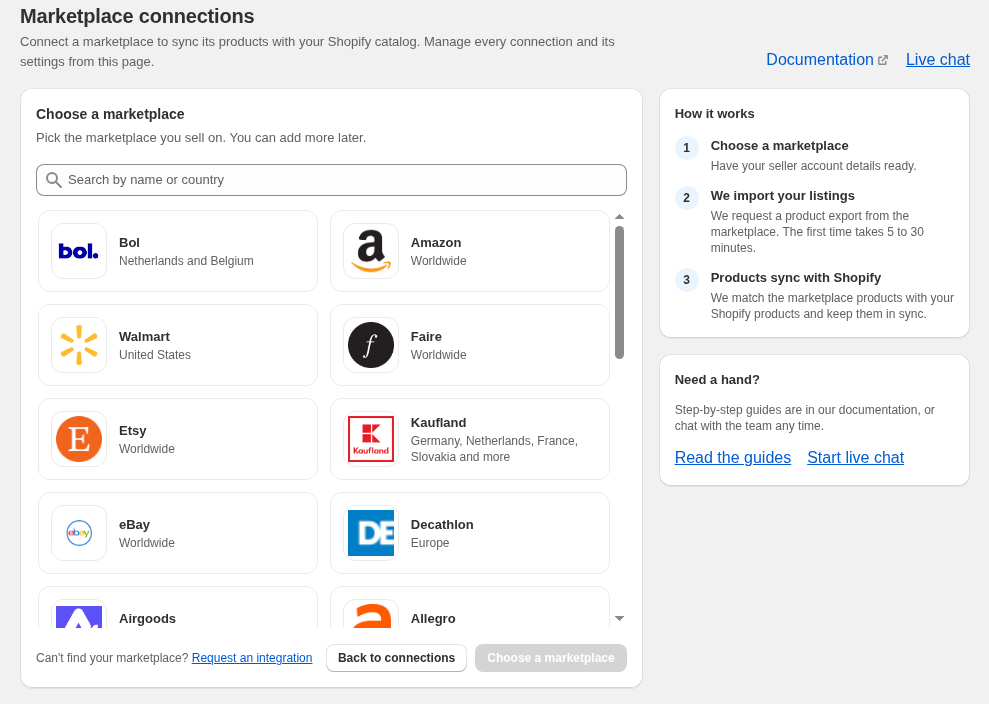
Step 2 - Connect to your Amazon account
The Add Amazon Connection window opens. Select the marketplace where you want to authorize our app. If you check Auto-detect Marketplaces I’m selling on in the same region, we will add one sales channel per marketplace you are selling on in the same region as the marketplace you authorize with.
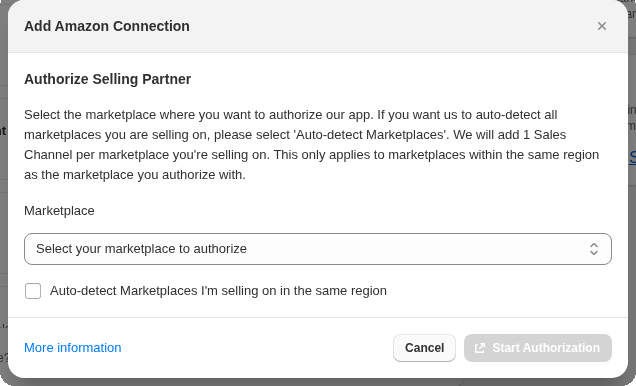
Start Authorization stays unavailable until you select a marketplace. The window also has a More information link.
After you select a marketplace, click Start Authorization. You will be forwarded to Amazon:

You will get redirected back to the app in your Shopify store. Your connections will be listed in the connections overview:
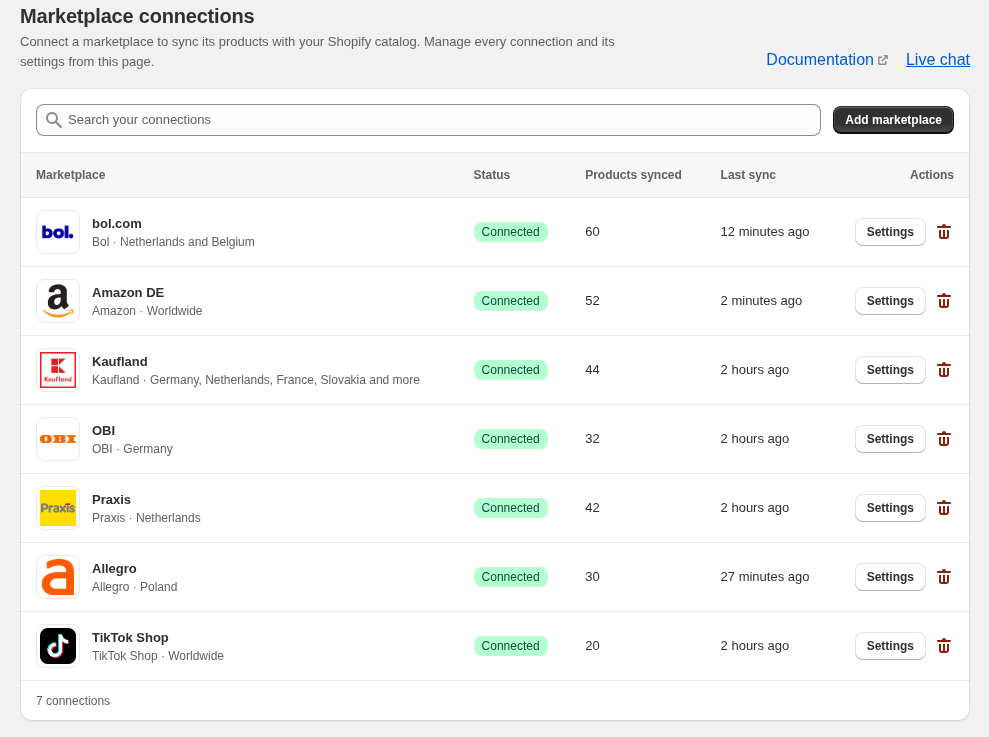
Each Amazon marketplace (NL, DE, FR, …) becomes its own connection with its own prefix, e.g. AMZ-NL-.
We will automatically try to link your Shopify products to the offers in your Amazon account. In the overview pages you will see incoming orders, and can monitor if everything works as expected.
Amazon-specific settings
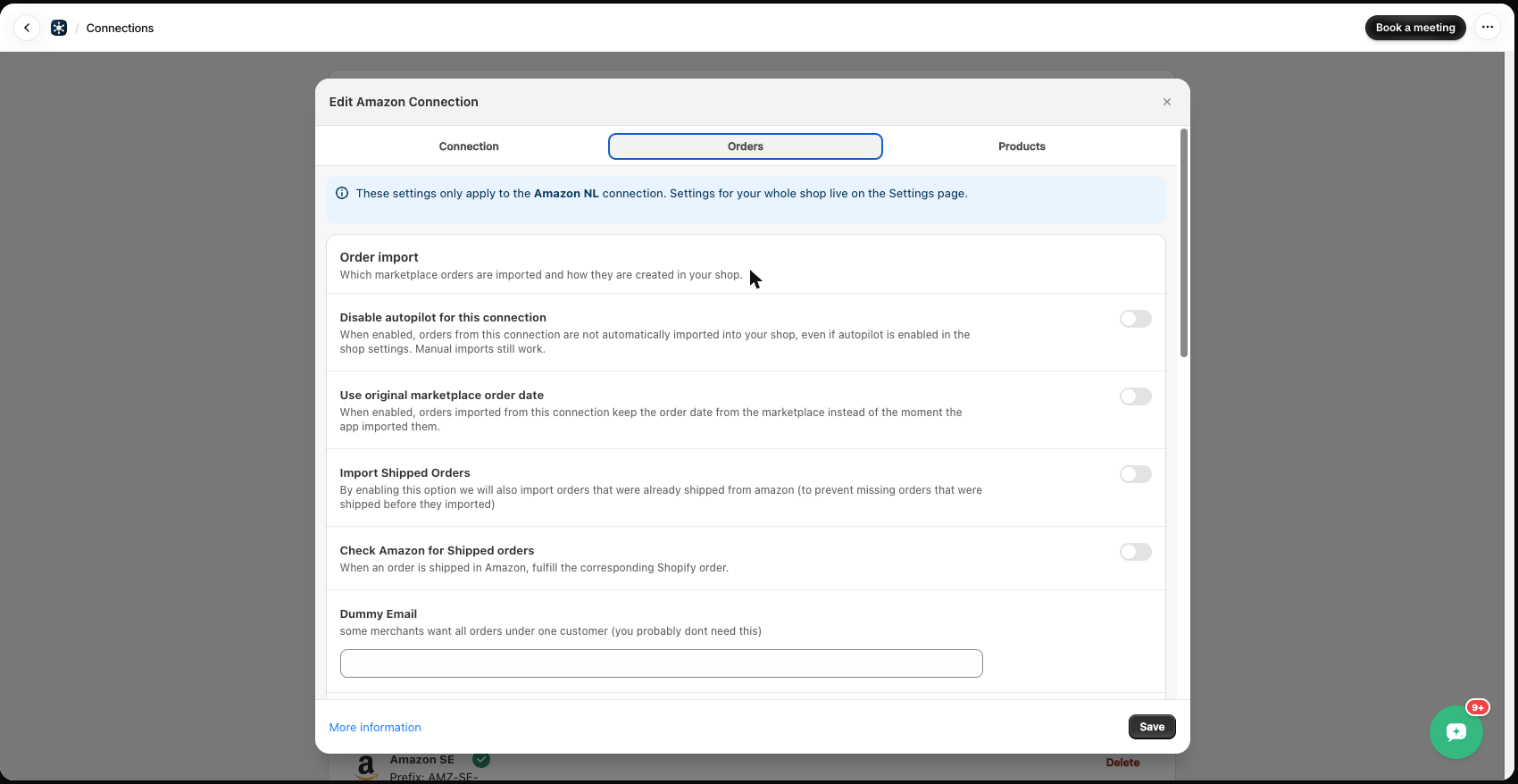
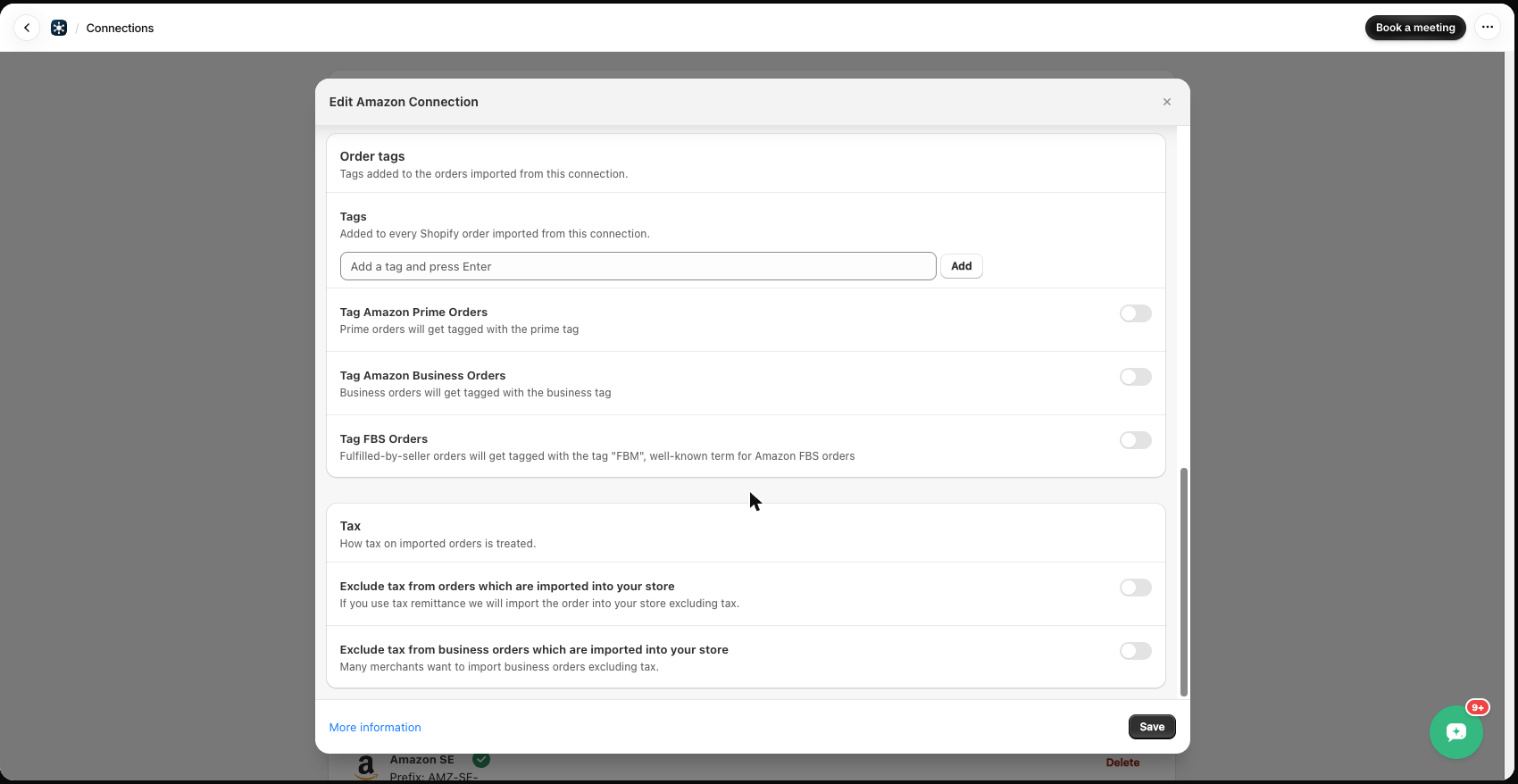
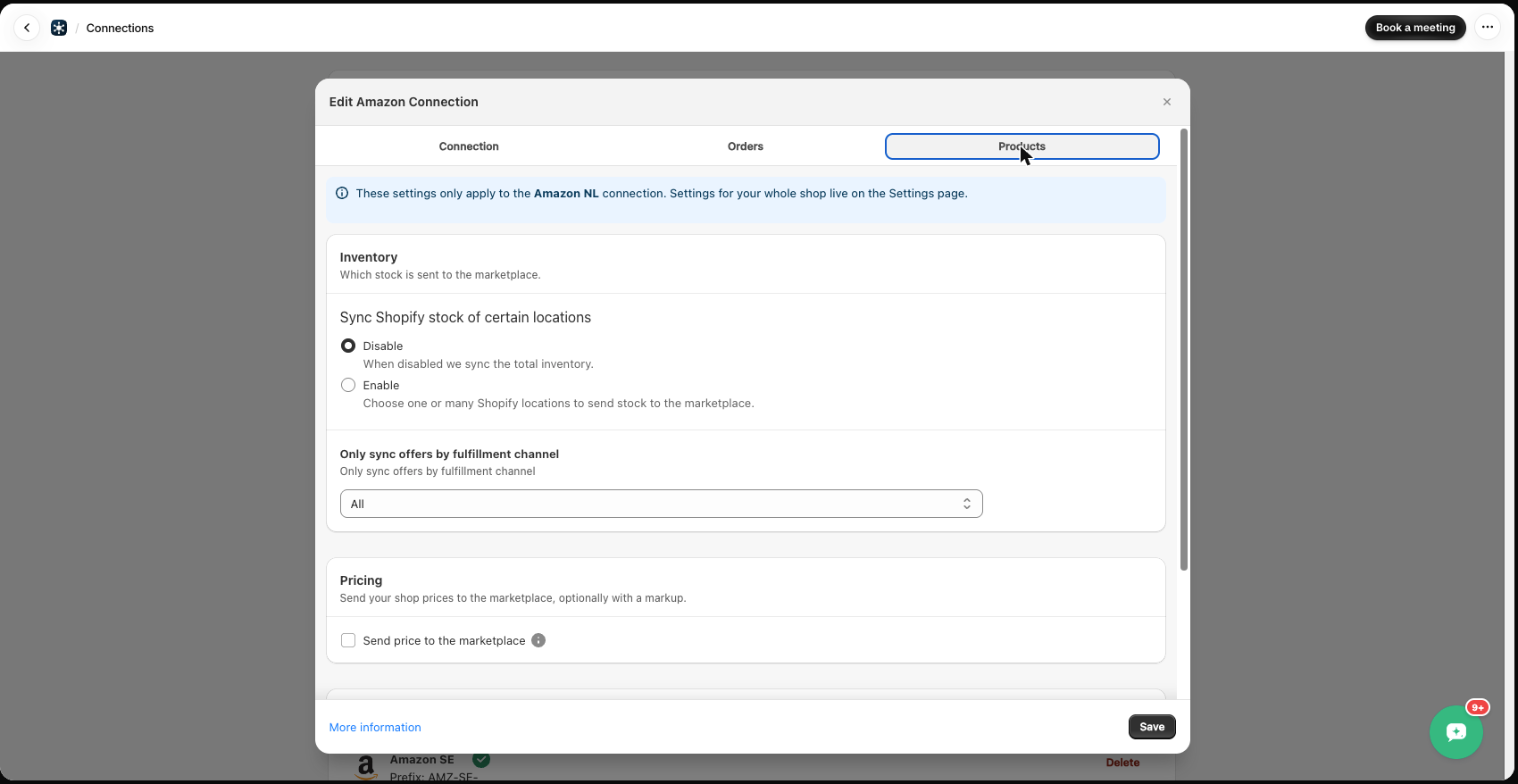
Click a connection to open its settings. Amazon connections have extra options: Check Amazon for Shipped orders, Fulfillment By Amazon (FBA), Prime / Business / FBS order tags, tax exclusion, and syncing offers by fulfillment channel (FBA / FBM). See Connection settings.
If you have any questions you can contact us over live chat support.
Was this article helpful?
Thanks for your feedback!