
Connecting to Bol.com
Connect your bol.com retailer account to Market Sync by logging in with bol.com and granting access. No API credentials needed.

You no longer need to create an API Client ID and Secret in the bol.com partner platform: you simply log in with your bol.com account from Market Sync.
Step 1 - Add the connection
Go to Connections in the app menu, click Add Connection and choose bol from the list of marketplaces.
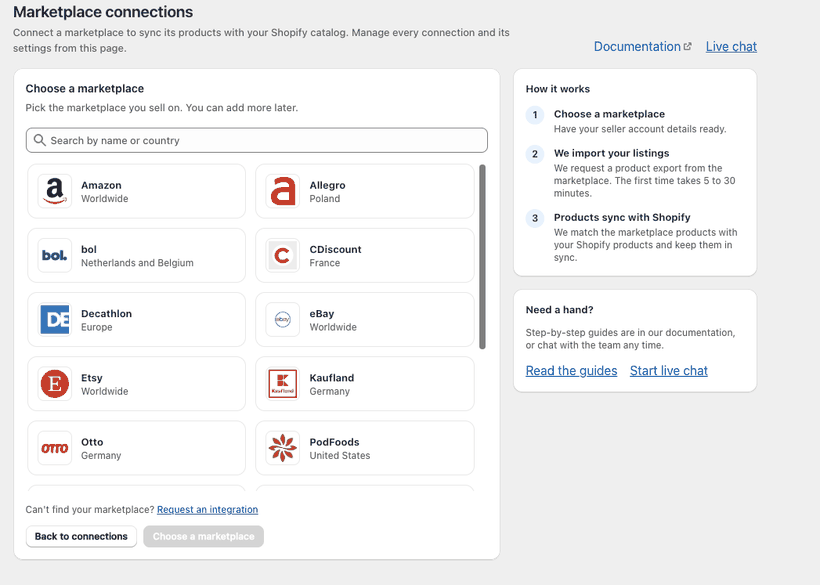
Step 2 - Start the authorization
The Add Bol Connection window opens. Click Start Authorization. You will be sent to bol.com to log in.
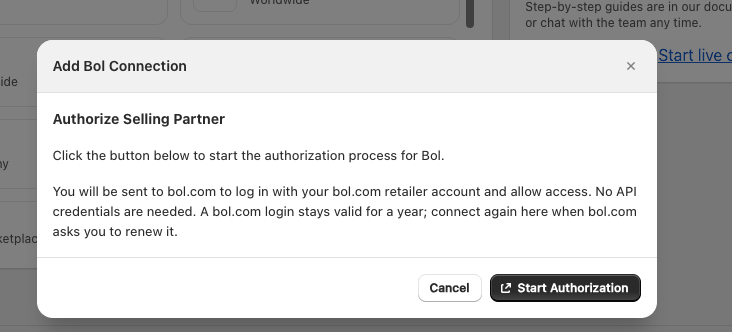
Step 3 - Log in to bol.com
Log in with the email address and password of your bol.com retailer account.
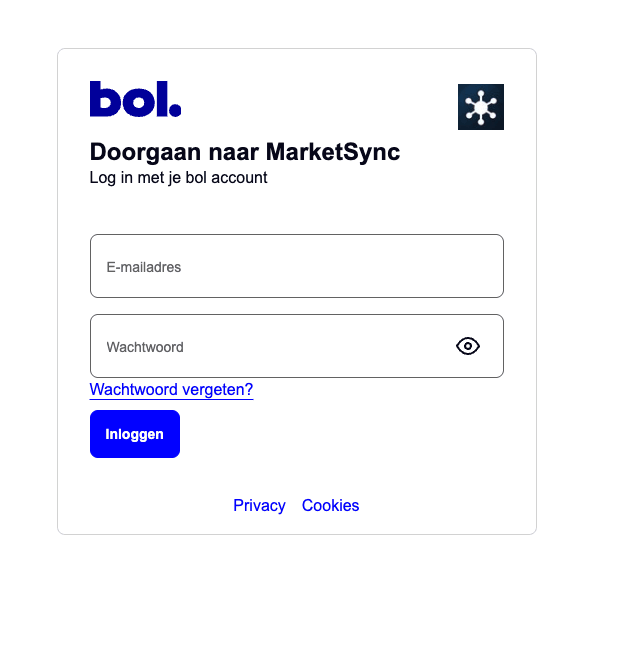
Step 4 - Allow access
Choose the retailer account you want to connect (if you have more than one, for instance for NL and BE), leave all permissions checked and click Toestaan (Allow).

You are sent back to Market Sync and the connection is created.
Good to know: a bol.com login stays valid for one year. When Market Sync asks you to renew it, simply connect again from the connection.
Please note
After adding the connection, the app imports products from bol.com and attempts to match them using the EAN and Shopify barcode or, if the sync method “SKU” is selected, the bol.com internal reference to Shopify SKU. Once the products are successfully linked, the orders will be imported.
Settings such as the order number prefix, order tags and importing Fulfilment by bol.com (FBB) orders can be changed afterwards in the settings of the connection.
Was this article helpful?
Thanks for your feedback!